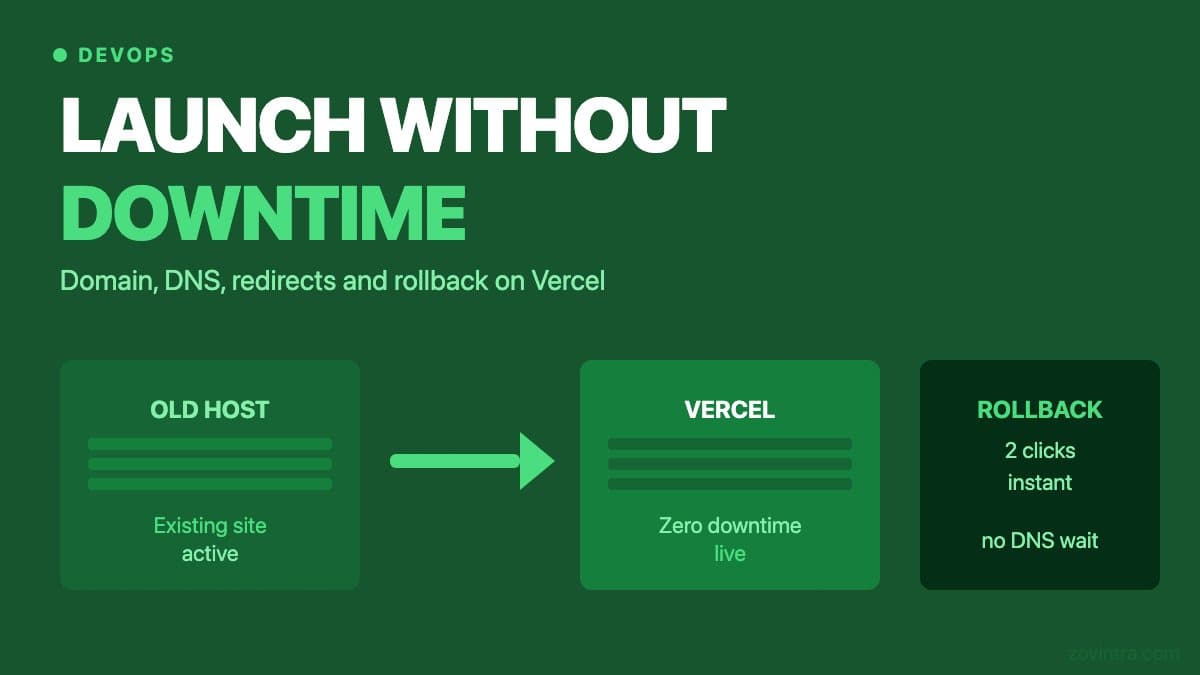
Launching on Vercel is straightforward until you get to the domain cutover. That is the moment when DNS changes propagate, old URLs need redirects, and a misconfigured record can leave your site unreachable for hours while the cached TTL expires. This article walks through the process we use when migrating a site to Vercel - what to set up before you change a single DNS record, how the cutover sequence works, and how to roll back immediately if something goes wrong.
Before Touching DNS: What Must Be Ready
Every step in this section can be done while the old host is still serving traffic. Do not start the DNS cutover until all of them are complete.
- Add your domain to the Vercel project. In the Vercel dashboard, go to your project, then Settings, then Domains. Add the production domain (for example, yoursite.com) and the www version. Per Vercel's domain guide, the dashboard shows the DNS values for your project: an A record for an apex domain, or a CNAME for a subdomain (each project has its own unique CNAME value). Copy the values shown for your project rather than reusing another project's records, and note them down before you open your DNS provider.
- Add environment variables for production. Vercel preview deployments and production deployments use separate environment variables. Confirm that every variable your application needs in production is set under the Production scope in Vercel's environment variable settings. A missing variable will cause a silent failure or a build error after the cutover.
- Run a production build and confirm it passes. Push the final version of your code, wait for the Vercel build to complete, and browse the generated preview URL to confirm the application works. This is your last chance to catch a build-time or runtime issue before real users are on the domain.
- Set up your redirects. If you are migrating from an existing site, old URL paths that are changing need 301 redirects. On Vercel, redirects are configured in vercel.json in the root of your repository. Write them before the cutover, push the commit, and verify they work on the preview URL. Setting statusCode to 301 is the form this checklist's later steps assume.
- Reduce your DNS TTL now. Log into your DNS provider and lower the TTL for the records you are about to change to 60 seconds (or the minimum your provider allows). Do this at least an hour before the cutover - ideally 24 hours before, because the reduced TTL only takes effect after the current TTL expires. A shorter TTL means DNS changes propagate faster and a rollback takes effect faster.
How to Configure Redirects in vercel.json
Redirects on Vercel are specified as a JSON array in vercel.json at the repository root. Per Vercel's vercel.json reference, each rule has a source, a destination, and either a permanent flag (permanent: true gives a 308, false gives a 307) or an explicit statusCode such as 301. Use a permanent redirect for pages that have moved for good, which matters if you are changing any URL structure during the migration.
A common pattern when migrating from a WordPress site is that category archive URLs, tag pages, or author pages existed on the old site but have no equivalent on the new one. The right move is to redirect these to the closest relevant page - usually the blog index or the homepage - rather than letting them 404. A flood of 404s on launch day is both a user experience problem and a signal to search engines that the site has degraded. See the WordPress migration guide for a more detailed treatment of this specific case.
A basic redirect entry in vercel.json looks like this: set the source to the old path (using a pattern if needed), the destination to the new path, and the statusCode to 301 (or permanent to true) for permanent redirects. Test every redirect on the preview URL before going live. The redirect syntax is documented in the vercel.json reference.
The DNS Cutover Sequence
Once your redirects are set, your production build is confirmed, and your TTL has been reduced, you are ready to cut over DNS. Do this when you have a few hours free, not at the end of a Friday afternoon.
- Log into your DNS provider and update the A record (or CNAME) for your root domain to point to Vercel. Use exactly the record type and value Vercel shows for the apex domain in your project's Domains settings, and re-check them if the dashboard reports an invalid configuration.
- Update the www subdomain in the same session with the CNAME value Vercel shows, and configure a redirect between www and the root so only one is canonical. Vercel's docs say to add both domains to the project and redirect to your preferred one.
- Check DNS propagation from a machine that is not on your local network. Use a tool such as dnschecker.org to see whether your records have propagated from multiple regions. You are looking for the new Vercel value to appear, not your old host.
- Once propagation is showing in most regions, open the production URL in an incognito browser tab (to avoid any cached DNS from your local resolver). Confirm the site loads, the SSL certificate shows as valid, and a few key pages and redirects work.
- Run a quick crawl or manual check on your most important pages: homepage, a few key product or service pages, and any pages with significant inbound links. Check that they load without errors and that redirected URLs resolve to the right destinations.
SSL Certificates: What Vercel Does Automatically
Vercel says it automatically tries to generate a certificate (from Let's Encrypt) for every domain once it is added to a project, but that it only works once the validation request succeeds, which happens after the DNS records are added and propagated. So if you check HTTPS straight after changing DNS you may see a certificate error until validation completes, and Vercel then renews certificates automatically 14 to 30 days before they expire as long as the domain stays correctly configured.
If you are migrating an older site that was using a purchased SSL certificate, you do not need to transfer it. Vercel's automated certificate replaces it. The only thing that matters is that the DNS records are pointed correctly.
How Rollback Works on Vercel
Vercel's Instant Rollback reverts to a previous production deployment. If something goes wrong after you cut over DNS - your production deployment is broken, a deployment you did not test thoroughly is serving bad content, or a dependency issue like the one we described in our CI gates article causes a runtime crash - you can roll back from the Vercel dashboard. Pro and Enterprise teams can roll back to any deployment previously aliased to a production domain; Hobby users can only roll back to the immediately previous deployment.
To roll back: on the project overview, click Instant Rollback on the Production Deployment tile (or use the menu on a row in the Deployments list), choose the deployment, and confirm. Vercel says the rollback happens instantaneously and points your domains back at the selected deployment, with no DNS change. Note that after a rollback Vercel turns off auto-assignment of production domains, so new pushes to your production branch will not go live until you undo the rollback by promoting a deployment.
This instant rollback is one of the most practical reasons to use Vercel for production deployments. A traditional server migration might take hours to undo. On Vercel, a rollback is a two-click operation. Vercel also warns that environment variables stay as they are and that external APIs and databases may behave differently from when the old deployment was live: rolling back the code does not undo a database migration. Database rollbacks are a separate concern.
Post-Launch Verification Checklist
- SSL is valid and showing in the browser (padlock icon, no certificate warnings).
- The root domain and www redirect correctly (or both resolve, if both are canonical).
- The five most important pages load without errors.
- Three to five key old URLs that should redirect do redirect to the right destination.
- Google Search Console: add the new domain property and submit your sitemap.
- Check page speed on the new deployment - measure it rather than assuming an improvement, because a misconfigured image or large asset can cancel out any gain from the new host.
- If you use analytics, confirm events are firing correctly on the new domain.
Environment Variables in Preview vs Production
A common launch mistake is assuming that because a feature worked in preview, it will work in production. Vercel lets you apply each environment variable to Production, Preview, Development or custom environments, so preview and production can pull different values. A variable you set as 'Preview only' is not available in production. A variable you set as 'All environments' is. Before launch, audit every environment variable in your Vercel project settings and confirm each one is scoped correctly.
This matters most for third-party API keys, payment provider keys, and database connection strings, where a wrong environment pointing to a test database or a sandbox payment system would cause real user transactions to fail silently. For a deeper look at how to manage environment variable scopes correctly, see managing Vercel env vars across preview and production.
Timing: When to Launch
Launch when someone on your team can monitor the site for two to three hours. Mid-week mornings (Tuesday to Thursday) are better than Friday afternoons. If you are deploying a significant application, write your rollback plan down before the cutover. 'If X goes wrong, step one is Y' agreed in advance is calmer than improvising under pressure.
If you want a team to run the cutover or to check the deployment before you go live, ask about support and hosting. We host our own website on Vercel, and we can either manage the process or review your plan before you execute it.
Common questions
How do I move my domain to Vercel without downtime?
Prepare everything while the old host still serves traffic: add the domain, set production environment variables, confirm a production build, write redirects and lower the DNS TTL. Then change the DNS records, check propagation, and verify the live site.
How do I roll back a bad launch on Vercel?
Use Instant Rollback on the Production Deployment tile and choose a previous deployment. Vercel says it points your domains back with no DNS change. Rollback does not undo database migrations, and auto-assignment of production domains is turned off afterwards.
Can someone run or check my Vercel domain cutover?
Zovintra hosts its own website on Vercel and offers support and hosting help. They can either manage the cutover process or review your plan before you execute it.
Sources
- Adding & Configuring a Custom Domain - Vercel documentation, last updated 2026-09-16
- Working with SSL Certificates - Vercel documentation, last updated 2026-09-16
- Performing an Instant Rollback on a Deployment - Vercel documentation, last updated 2026-07-07
- Static Configuration with vercel.json - Vercel documentation, last updated 2026-08-14
- Environment variables - Vercel documentation, last updated 2026-09-17