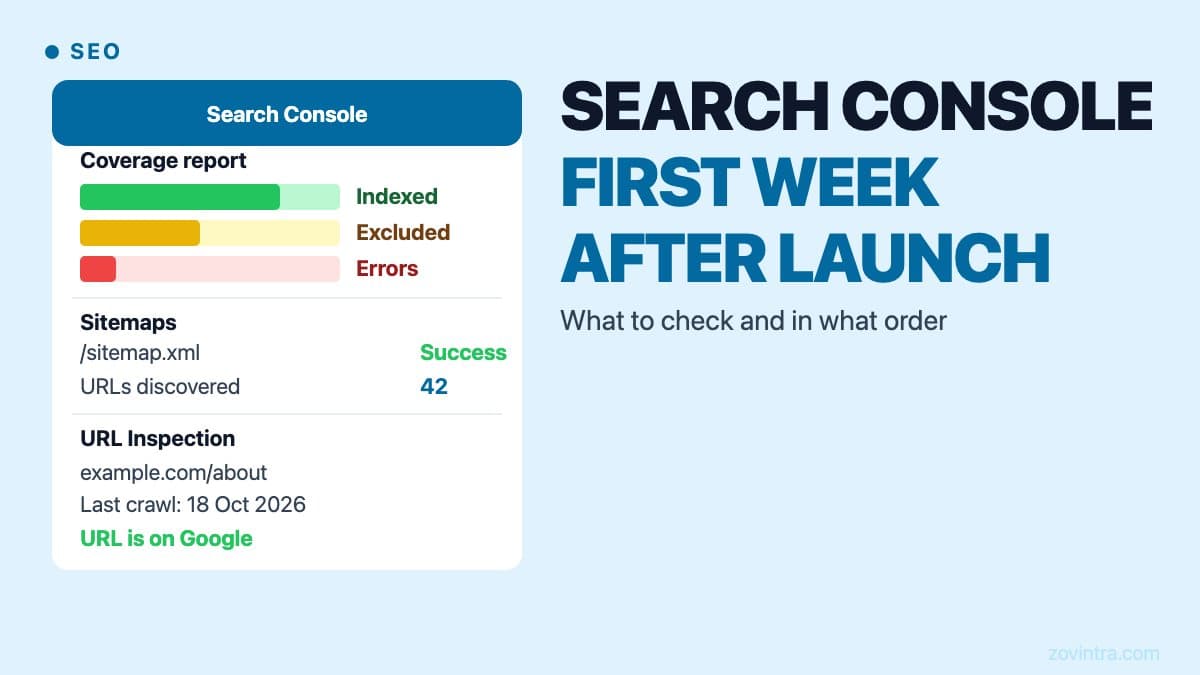
Google Search Console (GSC) is the fastest way to understand how Google sees your newly launched site. In the first week after launch, it tells you whether Google has found and indexed your pages, whether your sitemap was accepted, whether there are crawl errors blocking important content. Checking it once and closing the tab is not enough. The first seven days set the baseline for everything that follows in organic search.
Day One: Verify Ownership and Submit Your Sitemap
If you have not already, verify your property in Search Console before doing anything else. Google offers several verification methods: an HTML file at the root of your site, an HTML meta tag, an existing Google Analytics or Tag Manager snippet, or a DNS record at your domain provider. DNS is the only way to verify a Domain property, which covers all protocols and subdomains, and Google says not to remove the DNS record once verified. Adding a second verification method as a backup is also recommended.
Once verified, submit your XML sitemap in the Sitemaps report. Your sitemap URL is typically /sitemap.xml. For a Next.js site, the sitemap is usually generated automatically if you have a sitemap file in the app folder. Google describes sitemap submission as a hint, and the report shows when Googlebot accessed the sitemap and any processing errors. If it shows an error or no discovered URLs after a day or two, check that the sitemap URL returns a 200 response with valid XML, and that robots.txt is not blocking it.
Check your robots.txt at /robots.txt immediately. A common launch-day mistake is shipping a site where robots.txt still contains Disallow: / from the staging configuration, which tells crawlers not to crawl anything. If Search Console is showing low or zero crawl activity, robots.txt is the first thing to check. Note that robots.txt is also not the way to keep a page out of Google: use noindex or password protection for that.
Days Two to Three: Page Indexing Report
The Page indexing report (formerly Coverage) shows which URLs Google has discovered, indexed, and not indexed, with a reason for each status. Look at the not-indexed reasons carefully. Some are expected (canonical pointing elsewhere, pages with noindex), and some indicate problems.
- Crawled, currently not indexed: Google has crawled the page but has not indexed it. Google says it may or may not be indexed in future and there is no need to resubmit. If it affects your core content pages, the content may need to be improved or the page may be thin or duplicate.
- Discovered, currently not indexed: Google knows the URL exists (from your sitemap or links) but has not crawled it yet. Google says it often delays the crawl to avoid overloading the site. This is common on new sites.
- Page with redirect: the URL in your sitemap redirects to another URL. Update your sitemap to point to the final URL rather than a redirect chain.
- Blocked by robots.txt: if this appears for pages you want indexed, check your robots.txt for overly broad Disallow rules.
- Not found (404): a URL in your sitemap returns a 404. Remove it from the sitemap and either create the page or redirect the old URL to the new one with a 301.
The Page indexing report takes a few days to populate after launch. Do not be alarmed if your new site shows mostly Discovered, currently not indexed on day two. Google says it can take a week or so to start crawling and indexing a new page or site, and that indexing is never instant. A new domain with no inbound links will generally be crawled more slowly than an established one.
Days Three to Five: URL Inspection and Manual Indexing Requests
For your most important pages (homepage, main service pages, any pages you have actively promoted), use the URL Inspection tool to see Google's indexed version of the page and to request indexing. It shows how Google found and crawled the page, the canonical Google chose, and detected structured data.
You can request indexing for individual URLs from the URL Inspection panel. This is appropriate for high-priority pages in the first week, but Google notes that a request does not guarantee indexing, that requests are limited daily, and that for many pages a sitemap is the recommended route. You cannot request indexing if the live test shows the page is non-indexable. Fix the error first, then request indexing.
Skip clever shortcuts for the rest of the site. Submitting a sitemap and earning a few links from established sites is the dependable way to get pages discovered.
Days Five to Seven: Mobile Rendering and Structured Data
Google uses mobile-first indexing: it uses the mobile version of your content, crawled with the smartphone agent, for indexing and ranking. In week one, open your key pages on a real phone and check that text is readable, tap targets are spaced, and nothing is wider than the screen. You can also run PageSpeed Insights on key URLs. Anything missing from the mobile version of a page is effectively missing from Google's view of it.
If you are using structured data (Article schema, BreadcrumbList), check the relevant reports under Enhancements and the URL Inspection results. Errors in structured data do not by themselves prevent indexing but can prevent rich result features from appearing. Do not add FAQ schema expecting a rich result: Google's documentation says the FAQ rich result is no longer shown in Search.
The Core Web Vitals report will not have meaningful data in the first week. Its data comes from the Chrome UX Report and covers the last 28 days, and URLs without enough reporting data are left out. You can check your Core Web Vitals using PageSpeed Insights immediately, which provides lab data as well as field data where available. For a full understanding of Core Web Vitals and what they mean for ranking, that article covers the metrics in detail.
The Performance Report: What to Expect
The Performance report shows clicks, impressions, average position, and click-through rate. For a brand new site, this will be nearly empty in the first week. Impressions start appearing once Google has indexed pages and begins showing them in results. Position data follows. A new site typically takes weeks to months to accumulate meaningful Performance data.
Do not use the Performance report to evaluate launch success in week one. Use it instead to set a baseline. Export the data or note the baseline numbers at day seven so you have something concrete to compare against at day thirty and day ninety.
Common First-Week Mistakes
- Submitting a sitemap with non-canonical URLs: if your main URL is https://example.com but your sitemap contains http:// or www variants, this creates mixed signals.
- Missing the www variant: if you have traffic to both www and non-www, verify a Domain property (via DNS), which covers all protocols and subdomains, rather than a single URL-prefix property.
- Panicking about slow indexing: Google says it can take a week or so for a new site to start being crawled and indexed. Checking daily and requesting indexing for every page repeatedly does not speed this up.
- Ignoring the Enhancements section and URL Inspection results: this is where structured data errors and other actionable issues live. Many founders look only at the indexing report and miss them.
- Not setting up Search Console before launch: you cannot retroactively see indexing data from before verification. Set up the property before the site goes live.
Search Console is most useful as a monitoring tool after the first week. Set a recurring reminder to check the Page indexing report and Performance report at least monthly. If you are launching a new site and want to understand why a new website might not be ranking, that article explains the slower-moving factors that matter over months rather than days.
If you are launching a new site and want a technical SEO check alongside your Search Console setup - including sitemap validation, robots.txt review, and structured data verification - request a technical SEO review. Setting up the monitoring correctly in week one is cheaper than diagnosing six months of missed indexing later.
Common questions
What should I do first in Search Console after launching a site?
Verify ownership, using a DNS record if you want a Domain property, then submit your sitemap and check robots.txt immediately. A common launch mistake is shipping a leftover Disallow: / from staging, which tells crawlers not to crawl anything.
Why does Search Console say Discovered, currently not indexed?
Google knows the URL exists from your sitemap or links but has not crawled it yet, and says it often delays the crawl to avoid overloading the site. This is common on new sites, and Google says indexing is never instant.
Can someone check my new site's technical SEO after launch?
Zovintra offers a technical SEO review alongside Search Console setup, including sitemap validation, robots.txt review and structured data verification. The post argues that setting up monitoring correctly in week one is cheaper than diagnosing six months of missed indexing later.
Sources
- Verify your site ownership - Search Console Help - Google, accessed 19 Oct 2026
- Build and submit a sitemap - Google Search Central, accessed 19 Oct 2026
- Introduction to robots.txt - Google Search Central, accessed 19 Oct 2026
- Page indexing report - Search Console Help, accessed 19 Oct 2026
- URL Inspection tool - Search Console Help, accessed 19 Oct 2026
- Core Web Vitals report - Search Console Help, accessed 19 Oct 2026
- Mobile-first indexing best practices - Google Search Central, accessed 19 Oct 2026
- FAQ structured data - Google Search Central, accessed 19 Oct 2026