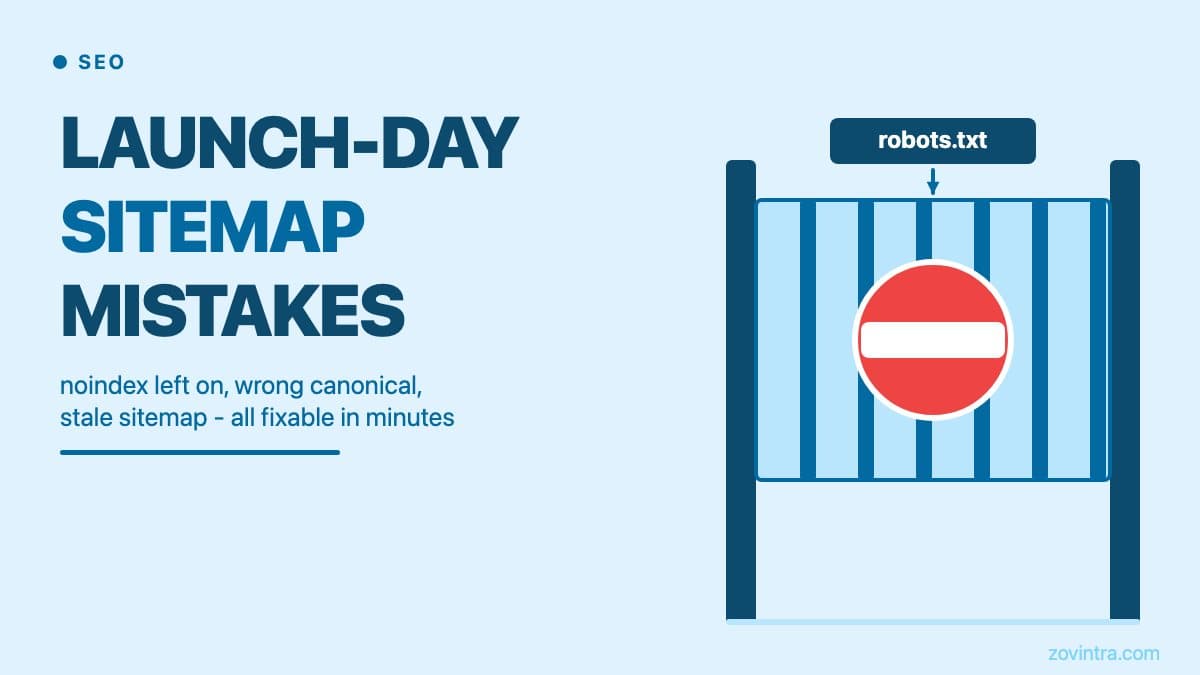
The most common reason a newly launched site does not appear in search results is not missing content or weak backlinks. It is a configuration mistake left over from staging: a `noindex` directive that was never removed, a robots.txt that still blocks Googlebot, or a sitemap pointing to URLs that do not exist in production. These mistakes cost weeks of indexing time because they are invisible to anyone not specifically checking for them.
The staging noindex that ships to production
Most modern frameworks and CMS platforms include a way to block search engines during development. In WordPress it is the Discourage search engines from indexing this site checkbox in Settings > Reading. In Next.js it might be a `robots: { index: false }` in your metadata config. In Webflow, Squarespace, and similar tools it is often called 'Password Protect' or 'Hide from search engines.'
The problem is that switching from staging to production is a checklist item that gets rushed. Someone flips the domain, points DNS, and declares the site live. The noindex flag stays because it was in the codebase or config file, not in a UI toggle someone thought to check. Googlebot arrives, reads `X-Robots-Tag: noindex` or a `<meta name='robots' content='noindex'>` tag, and, as Google's robots meta tag documentation describes, drops the page from search results. If the flag is site-wide, that means every page, not just the homepage.
You can verify this in about thirty seconds. Open your production homepage, view the page source (Ctrl+U / Cmd+U), and search for 'noindex'. If you find it anywhere in the `<head>`, you have a problem. Also check your server response headers. Search Console's URL Inspection tool reports whether crawling and indexing are allowed for a URL, and its crawled-page view shows the HTTP response and returned HTML.
The robots.txt that is still in staging mode
A staging robots.txt typically looks like this:
`User-agent: *` / `Disallow: /`
That two-line file blocks every compliant crawler from every page on the site. It is exactly what you want during development. It is exactly what you do not want in production. If this file ships to your production domain - which can happen when teams copy server configurations or deploy from the same repository branch - search engines read the file and cannot crawl your content. Google's robots.txt introduction is careful to say robots.txt controls crawling, not indexing, and the URL Inspection documentation notes that a robots-blocked page can still appear in results without Google seeing its content. A blocked page also hides any noindex tag from Google, so the two problems can mask each other.
The fix is straightforward: your production robots.txt should allow crawling. A minimal correct version is `User-agent: *` / `Disallow:` (blank Disallow allows everything). Then add a Sitemap line pointing to your production sitemap, which Google says it will find the next time it crawls your robots.txt file. The same Google documentation covers the full syntax. Check your live robots.txt by visiting `yourdomain.com/robots.txt` directly. If it says `Disallow: /`, stop everything and fix it before doing anything else.
The sitemap that points to the wrong URLs
Sitemaps tell search engines which pages exist and when they were last updated. The most common sitemap mistakes on launch day are not about the sitemap format - they are about what the sitemap URLs actually resolve to.
Staging domain URLs in a production sitemap
If your sitemap was generated during development or staging, its `<loc>` entries may still reference `staging.yourdomain.com`, `preview.yourdomain.com`, or a Vercel/Netlify preview URL. Google's sitemap guidance says it will attempt to crawl your URLs exactly as listed, and recommends fully-qualified absolute URLs. Staging URLs will 404, redirect, or hit a password-protected environment, and none of those outcomes helps your production pages get indexed.
Static sitemap shadowing a dynamic one
This is a specific problem for Next.js and similar frameworks. Next.js serves files in the public folder at the matching URL path, and its docs say special metadata files such as robots.txt belong in the app folder instead. If you have a `public/sitemap.xml` file in your repository, it can end up being served in place of the dynamic route you defined in `app/sitemap.js`, and your sitemap stops updating every time you add new content. Check which one `/sitemap.xml` actually returns on your deployment.
The fix: delete the static `public/sitemap.xml` file. Let the framework generate the sitemap dynamically. We documented this exact issue in our own site's SEO audit - a leftover static file was shadowing the dynamic sitemap and left 22 published posts out of the sitemap. We have since removed it.
Canonical URLs that do not match the sitemap
If your canonical tags reference `yourdomain.com` (non-www) but your sitemap references `www.yourdomain.com`, search engines receive contradictory signals. Google lists redirects, rel=canonical annotations and sitemap inclusion as the signals that influence which URL it picks as canonical, with sitemap inclusion the weakest. When they disagree, Google may choose a canonical URL you did not intend. Your sitemap, canonical tags, and the domain that actually serves a `200 OK` response should all agree.
Sitemap not submitted, or submitted to only one search engine
A sitemap file on your server does nothing on its own. Googlebot can discover it if your robots.txt references it, but 'eventually discovered' and 'submitted today' can be very different timelines for a new domain that has no crawl history.
A good first step is to submit the sitemap URL directly in Google Search Console under Sitemaps, as Google's guide to submitting a sitemap describes, and separately in Bing Webmaster Tools. Bing also supports the IndexNow protocol, which lets you notify participating search engines about new or updated URLs instead of waiting for them to crawl. Google's documentation does not mention IndexNow, so it will not replace the Search Console submission. The setup is short enough to do on launch day.
The launch-day indexing checklist
Work through this before you announce the site or share any marketing. Each item takes under five minutes to verify:
- View page source on the homepage and search for 'noindex' - it should not appear
- Check `yourdomain.com/robots.txt` - Disallow should be blank or specifically scoped, not '/'
- Check `yourdomain.com/sitemap.xml` - URLs should use your production domain, not staging
- If using Next.js: confirm no `public/sitemap.xml` exists (if it does, delete it and let the dynamic route run)
- Check that canonical tags match the production domain exactly (www vs non-www, https vs http)
- Submit the sitemap URL in Google Search Console
- Submit the sitemap URL in Bing Webmaster Tools
- Use the URL Inspection tool in Search Console on your homepage to request a crawl
- Check the URL Inspection report and the Pages report in Search Console after a few days, rather than relying only on a site: query
What to do if pages are still not indexing after a week
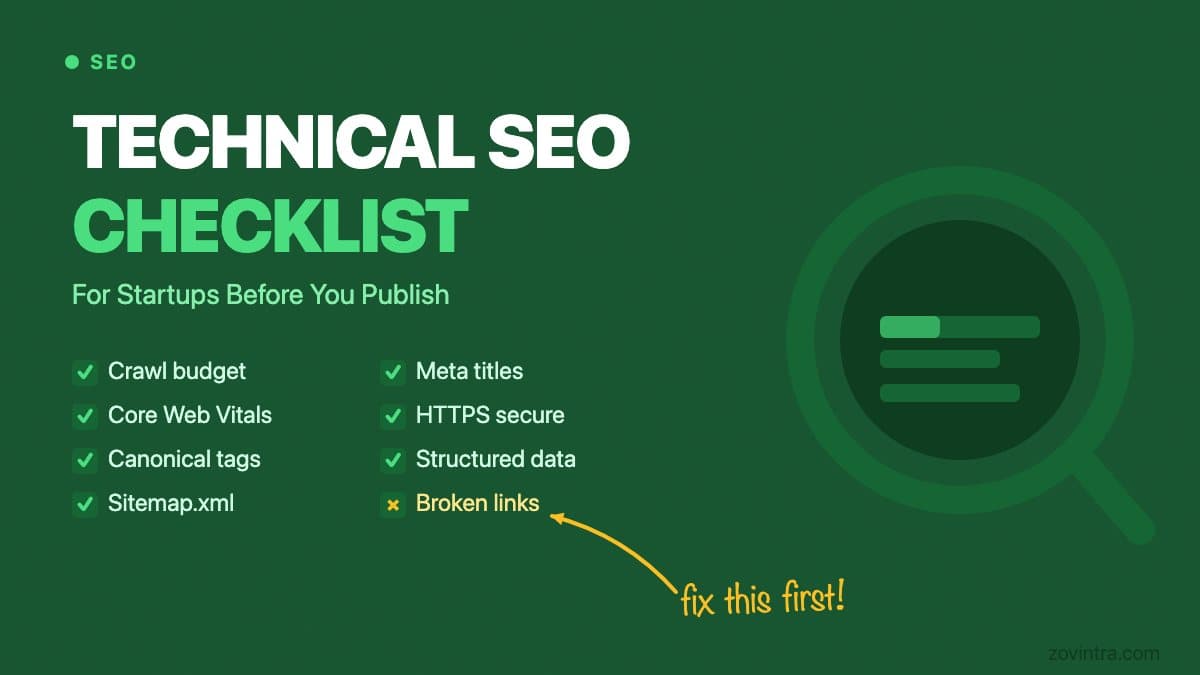
If you have cleared all of the above and pages are still not appearing in Google after seven to ten days, the next things to check are: page quality signals (thin content, duplicate content), structured data errors that might cause Google to distrust the page, and crawl budget issues on very large sites. The technical SEO checklist for startups covers the full diagnostic path once the basic configuration blockers are cleared.
How long before Google indexes a new site?
Google's own guidance on asking Google to recrawl your URLs says crawling can take anywhere from a few days to a few weeks, and that requesting a crawl does not guarantee inclusion in search results will happen instantly or even at all. Repeated requests for the same URL will not speed it up. For a brand-new domain with no crawl history, plan for the slow end of that range. Links from already-indexed sites pointing at your domain also help Google find your pages.
This is why the configuration checks matter so much on launch day. Every day a noindex tag is live or a robots.txt blocks crawlers is a day of delay at the start of a process that already takes weeks. Fixing these mistakes on day one is worth considerably more than fixing them on day fourteen.
The free app health check tool will run an automated scan of your site's technical SEO configuration and flag common indexing blockers. For a deeper look at what is preventing your site from ranking, request a technical review and we will work through the full diagnostic with you.
Common questions
Why is my new website not showing up in Google?
A common cause is a staging leftover: a noindex directive never removed, a robots.txt that still says Disallow: /, or a sitemap pointing to staging URLs. Check the page source for 'noindex', visit /robots.txt, and confirm the sitemap uses your production domain.
How do I submit my sitemap to Google and Bing?
Submit the sitemap URL in Google Search Console under Sitemaps, and separately in Bing Webmaster Tools. Bing also supports the IndexNow protocol, but Google's documentation does not mention IndexNow, so it will not replace the Search Console submission.
Can someone check why my pages are still not indexing?
If pages are missing after seven to ten days, check page quality signals, structured data errors and crawl budget. The free app health check scans your technical SEO configuration for common indexing blockers, and Zovintra offers a technical review for a deeper diagnostic.
Sources
- Introduction to robots.txt - Google Search Central, accessed 19 Oct 2026
- Robots meta tag, data-nosnippet, and X-Robots-Tag specifications - Google Search Central, accessed 19 Oct 2026
- URL Inspection tool - Google Search Console Help, accessed 19 Oct 2026
- Build and submit a sitemap - Google Search Central, accessed 19 Oct 2026
- How to specify a canonical URL - Google Search Central, accessed 19 Oct 2026
- Ask Google to recrawl your URLs - Google Search Central, accessed 19 Oct 2026
- Why IndexNow - Microsoft Bing Webmaster Tools, accessed 19 Oct 2026
- Settings Reading Screen - WordPress.org Documentation, accessed 19 Oct 2026
- public Folder - Next.js Docs, accessed 19 Oct 2026