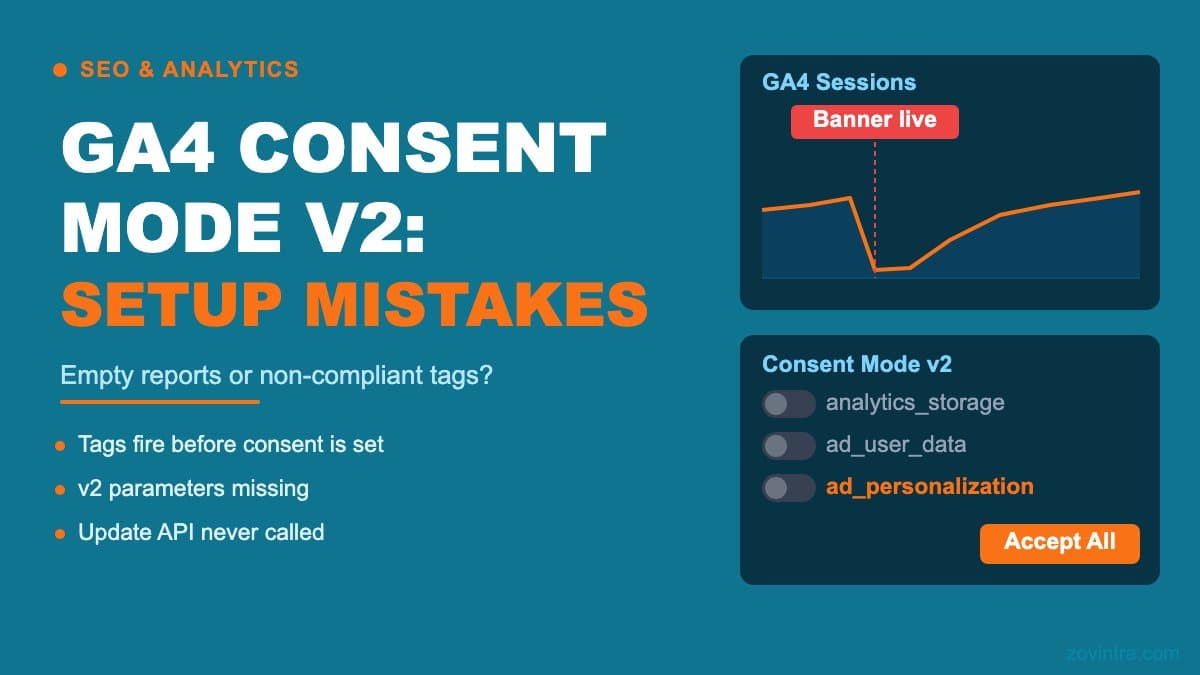
GA4 Consent Mode v2 is the updated Google framework for passing a visitor's consent choices to its tags, introduced in November 2023 and aimed at sites serving users in the EEA. Set it up wrong and you face two failure modes: tags fire before the user consents (a compliance risk), or tags never fire after consent is given (empty analytics). Both problems can coexist on the same site, and neither announces itself clearly in GA4's interface.
GA4 Consent Mode v2 Setup: What It Actually Does
Consent Mode works by letting Google tags 'listen' to consent signals you push via the `gtag('consent', ...)` API. When a user declines analytics cookies, Google tags adjust their behaviour (limited, cookieless signals) and Google can use modelling to estimate what happened. When they accept, tags fire fully. The v2 update adds two new parameters - `ad_user_data` and `ad_personalization` - which Google's docs say you must send alongside the existing `analytics_storage` and `ad_storage`.
The setup sequence matters. Google's docs say to call `gtag('consent', 'default', ...)` on every page before any commands that send measurement data, and warn that if the consent code runs out of order, "consent defaults won't work". Then your cookie banner must call the update API after the user decides. Getting the order wrong, or skipping the default push, is the root cause of most Consent Mode failures.
Mistake 1: Firing Tags Before the Consent Default Is Set
The most common mistake is loading your tag manager first and pushing the default consent state afterwards. If GTM loads before your `gtag('consent', 'default', {...})` call, the defaults will not take effect and tags can fire before the user has seen the banner.
The fix is to place the consent default push in a `<script>` block that appears before the GTM snippet in your `<head>`. On a Next.js site, this means using the `beforeInteractive` strategy on the Script component or placing the snippet directly in your root layout, before the GTM Script tag.
Testing this properly requires a network trace. Open DevTools Network, filter for requests to `google-analytics.com`, reload the page without accepting the banner, and look for GA requests. If you see any hits before you have clicked the banner, your default is not taking effect.
Mistake 2: Not Calling the Update API After Consent
Some consent banner implementations push the default correctly but never call `gtag('consent', 'update', {...})` when the user accepts. The result is that GA4 stays in denied mode for the entire session, even after the user clicks Accept. Your analytics show almost no data, and you cannot tell whether it is a traffic problem or a consent configuration problem.
If you are using a CMP (Consent Management Platform) such as Cookiebot, OneTrust, or Usercentrics, they handle the update call on your behalf through their GTM integration. But this only works if you have configured their tag correctly in GTM and the tag is firing. Check the CMP's own diagnostic view, not just GA4, to confirm the update signal is being sent.
For custom consent banners - built with a library or built in-house - the update call is your responsibility. The accepted values are the strings 'granted' and 'denied', nothing else. A common slip in hand-built banners is passing a boolean or the string 'true', so check what your code actually sends.
Mistake 3: Missing the v2 Parameters
Consent Mode v2 requires four parameters: `analytics_storage`, `ad_storage`, `ad_user_data`, and `ad_personalization`. Sites that implemented Consent Mode v1 often have only the first two. Without the v2 parameters, Google's advertising tags may still fire in a mode that does not meet the current requirements for EEA users.
Google's docs say consent mode users need to send the two new parameters, and that Google is strengthening enforcement of its EU user consent policy. If your site uses Google Ads remarketing or conversion tracking, treat the absence of these parameters as a gap, not just a configuration warning.
You can verify which parameters are being set by opening the Tag Assistant (the Google Chrome extension) on your site. It shows the consent state for each parameter at each moment in the session - granted, denied, or not set.
Mistake 4: Consent State Not Persisting Across Sessions
When a user accepts cookies and returns the next day, the consent state must be restored before tags load. If your implementation reads the consent cookie only after the GTM container fires, returning visitors start each session in denied mode until the banner logic runs again.
This is particularly damaging to GA4 session attribution. A returning user's second session may look like an unattributed direct visit because the attribution cookies cannot be set in denied mode on the first page load.
The fix: read the consent cookie in the same synchronous `<script>` block where you push the default state. If a stored preference exists, push it as the default. If not, push all-denied as the default and let the banner trigger the update.
Mistake 5: Testing Only With Your Own Accepted State
Most teams test their setup after accepting the banner. That tests the granted path. The denied path - what happens when users decline, or when they are in a region where no consent was given - often goes untested.
Clear your consent cookies and reload. Open Network and confirm that no GA hits fire on page load. Then accept, and confirm that hits begin. Then clear again, decline, reload, and navigate to a second page. Confirm still no hits. That is the minimum test sequence.
Also test with a clean browser profile, so a cached consent cookie from an earlier visit does not hide a broken default.
What Modelling Covers and What It Does Not
When users decline, GA4 uses behavioural modelling to estimate the traffic you are missing. This is helpful but not a substitute for correct implementation. Google's help page on behavioural modelling sets minimums: at least 1,000 events per day with analytics_storage denied for at least 7 days, and at least 1,000 daily users sending events with analytics_storage granted on at least 7 of the previous 28 days. Meeting them does not guarantee eligibility, and low-traffic sites will simply show gaps.
More importantly, modelled data is flagged in GA4 reports and is not supported in data exports such as BigQuery export, nor in audiences or cohort explorations. If you are relying on GA4 data for billing, advertising spend decisions, or compliance reporting, gaps in the consented data are not reliably filled by modelling. You need the implementation right.
GA4 Consent Mode implementation is one of the first things we check in a technical SEO review. If your reports look thin or your consent banner was set up alongside a site migration, it is worth verifying the full sequence before drawing conclusions from the data. You can also check your site's technical SEO health with our free audit tool.
A Note on Indian Sites
Consent Mode v2 is a Google requirement tied to the EU's ePrivacy and GDPR rules. India's DPDP Act has its own consent requirements that are not the same as the EU framework. If your site serves Indian users, review the DPDP consent obligations separately. The GA4 Consent Mode setup and DPDP compliance are related but distinct requirements.
Frequently Asked Questions
Common questions
Why does my GA4 show almost no data after I added a cookie banner?
A common cause is a banner that sets the default consent state but never calls gtag('consent', 'update', ...) when the user accepts, which leaves GA4 in denied mode for the whole session. Check what your banner code actually sends; the accepted values are the strings 'granted' and 'denied'.
How do I test that Consent Mode is working correctly?
Clear your consent cookies, reload, and watch DevTools Network for requests to google-analytics.com; none should fire before you accept. Then accept and confirm hits begin, and repeat with a decline to test the denied path. Use a clean browser profile so a cached consent cookie does not hide a broken default.
When should I get someone to check my GA4 consent setup?
If your reports look thin, or your consent banner was set up alongside a site migration, verify the full sequence before drawing conclusions from the data. Zovintra checks GA4 Consent Mode implementation as one of the first things in a technical SEO review.
Sources
- Set up consent mode on websites - Google for Developers, accessed 19 Oct 2026
- Behavioral modeling for consent mode - Google Analytics Help, accessed 19 Oct 2026